Finding an easy cloud storage tutorial for first time laptop owners feels impossible when every guide assumes you already know tech jargon. You just dropped serious money on a brand new computer. The last thing you want is to lose your family photos or important documents if you spill coffee on the keyboard tomorrow. Setting up a backup system takes minutes once you know where to click.
Understanding What the Cloud Actually Is
A lot of people picture a literal satellite floating in space holding their files. The reality is much simpler. Every easy cloud storage tutorial for first time laptop owners should start by removing the mystery. The cloud is just a massive secure computer sitting in a heavily guarded building owned by companies like Google or Microsoft. When you save a file there, you are just renting a tiny sliver of their hard drive space.
This matters because it means your files exist completely outside of your physical machine. If your hard drive crashes or your screen cracks, your data remains perfectly safe on their servers. You can log into your account from a library computer or your phone and see everything exactly as you left it. Many beginners skip this concept entirely. Knowing where your photos actually live removes the fear of accidentally deleting something important. Treat your online drive like a safety deposit box that you can magically open from anywhere.

Picking the Right Provider for Your Device
Choosing a provider usually depends on the logo stamped on the back of your machine. Windows users will find that OneDrive is already baked right into their system files. Apple fans have iCloud seamlessly attached to their Apple ID from the moment they turn on their Mac. Google Drive is fantastic if you already use Gmail and want a huge chunk of free space right out of the gate.
You do not need to overthink this choice. Stick with the system that already matches your hardware or email provider. Doing this prevents you from having to remember yet another set of passwords. I personally lean toward Google Drive for absolute beginners because the interface is incredibly forgiving. They give you a generous 15 gigabytes for free. That is usually enough room to hold years of tax returns, resumes, and smartphone photos before you ever have to pull out a credit card.
Creating Your Account and Claiming Free Space
Getting started requires an email address and about two minutes of your time. Head over to the website of your chosen provider and look for the signup button. If you picked Google Drive or OneDrive, you might realize you already have an account attached to your existing email. Just log in with your normal credentials. You will instantly see a blank dashboard staring back at you.
Do not let the empty white space intimidate you. This is your personal digital locker. The very first thing you should do is check the bottom left corner of the screen. You will see a small meter showing your current storage capacity. Keep an eye on that number as the months go by. Many beginners make the mistake of ignoring their storage limits until they get a loud warning pop-up. Knowing exactly how much free room you have right at the start sets you up for success.
Downloading the Desktop App for Automatic Syncing
Logging into a website every time you want to save a document gets old fast. Reading an easy cloud storage tutorial for first time laptop owners usually leads to this exact step. The absolute best way to handle your files is to install the official desktop application. You can usually find a download link right on your main dashboard. Installing this small piece of software creates a magical folder directly on your hard drive.
Anything you put into this folder automatically copies itself to the internet in the background. You never have to click an upload button again. It happens silently while you browse the web or watch videos. This is the biggest secret to keeping your data safe without doing any extra work. Just make sure your internet connection stays active while large video files transfer. If you disconnect too early, the upload pauses until you connect to a network again.
Step-by-Step Easy Cloud Storage Tutorial for First Time Laptop Owners
Setting up your main folders correctly from day one prevents a massive headache later. Open that newly installed folder on your computer and right-click to create three basic categories. Name them something obvious like Personal, Work, and Photos. Dragging everything into one giant pile makes finding a specific PDF nearly impossible down the road. This guide focuses heavily on organization because messy folders lead to lost data.
Also Read: Best Smartphone Privacy Settings Guide For College Students 2026
Once you have your basic structure built, you can start nesting smaller folders inside them. Treat this space exactly like a physical filing cabinet. Give your folders clear dates and names. Trying to figure out what a file named DocumentFinal2 contains six months from now is a total nightmare. Taking an extra ten seconds to name things properly right now will save you hours of frantic searching later.
Dragging and Dropping Your First Files
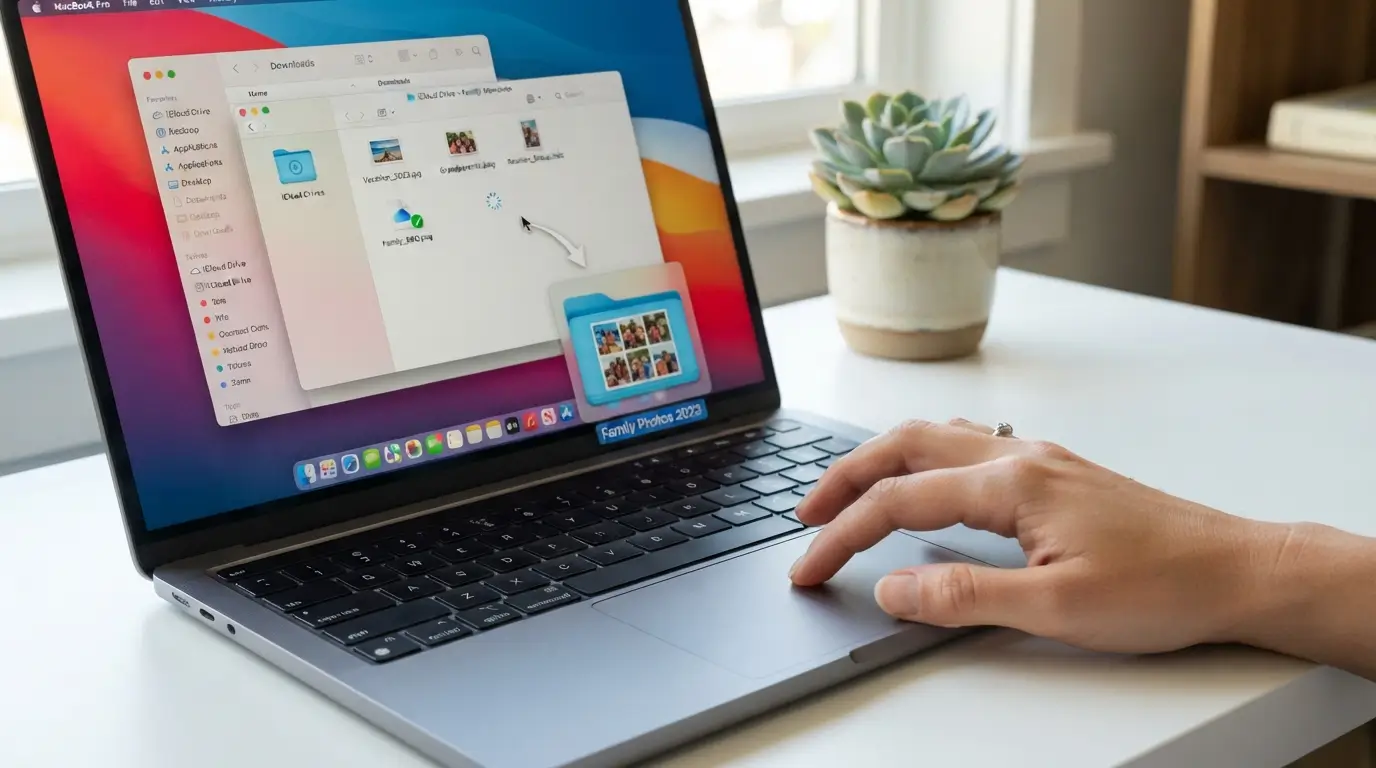
Moving your files into your new secure folder works exactly like moving icons around your desktop. Click and hold the document you want to protect, drag it over your new online folder, and let go of your mouse button. You will usually see a tiny blue syncing icon appear next to the file name. This means the computer is currently sending a copy up to the server. Once that icon turns into a solid green checkmark, the transfer is complete.
Start by moving your most critical items first. Grab your financial records, family photographs, and any ongoing work projects. Following an easy cloud storage tutorial for first time laptop owners means taking things slow. Large photo albums might take ten or twenty minutes to fully transfer depending on your internet speed. Be patient and let the machine do its job. Some people try to move their entire hard drive at once and end up freezing their system completely. Move things in small batches to keep the process smooth.
Testing Your Backup on Another Device
Trusting a process you cannot physically see takes a leap of faith. The smartest way to prove your files are actually safe is to check them from an entirely different screen. Grab your smartphone and download the mobile app for your chosen provider. Log in using the exact same email and password you used on your computer. You should instantly see the folders you just created sitting right there on your phone screen.
Tap on a document to open it. Seeing that file load perfectly proves that your backup is working exactly as intended. This simple test provides immediate peace of mind. If you do not see your files, go back to your computer and make sure the sync process actually finished. Sometimes a slow wifi connection creates a delay. Verifying your setup early ensures you are truly protected against a sudden hardware disaster.
Sharing Links Instead of Attaching Heavy Files
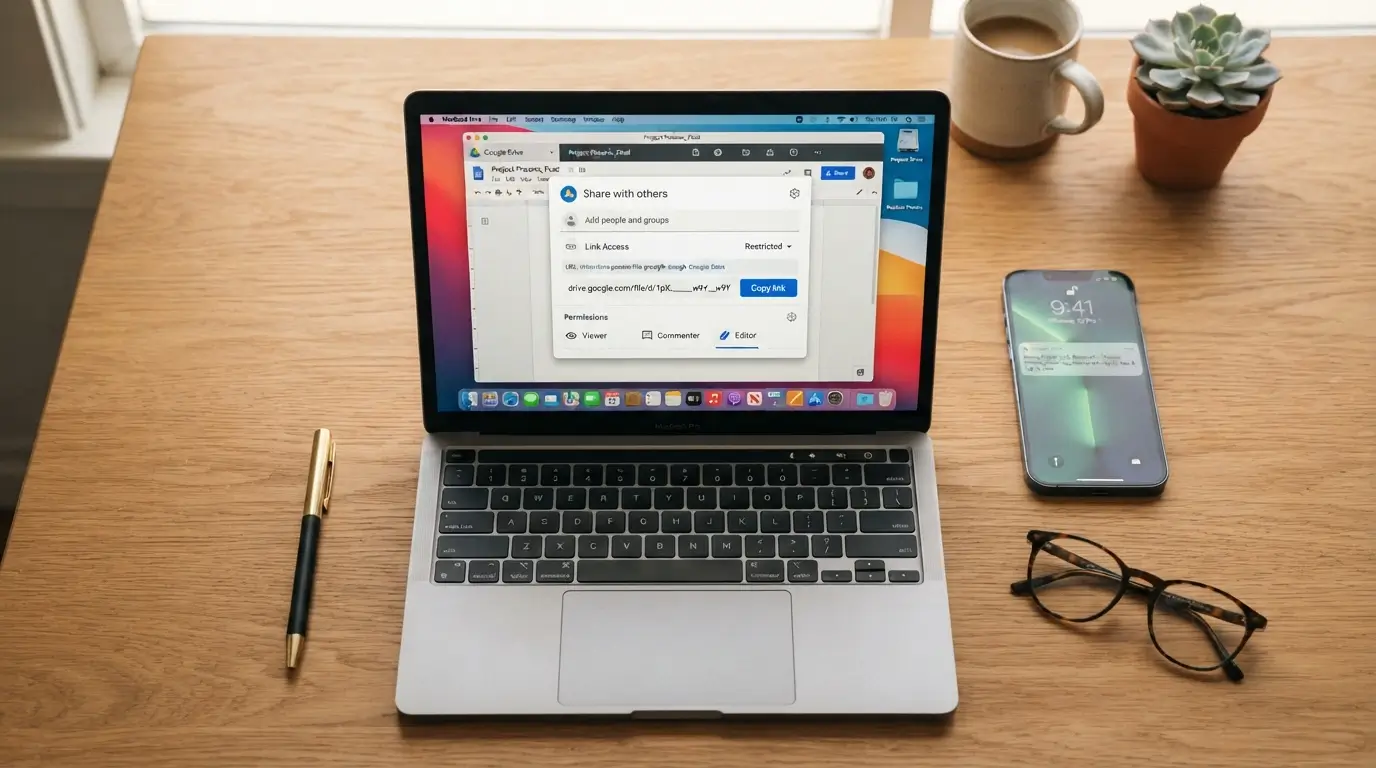
One massive benefit of keeping your files online is how easily you can send them to other people. Email providers constantly block messages if you try to attach too many heavy video clips or large photo albums. Instead of fighting with file size limits, you can just send a direct link to your online folder. Right-click any file you want to share and select the share option. You will get a unique web link that you can paste into an email or text message.
The person receiving the link simply clicks it to view or download the item. You can even set permissions so they can only look at the file without making any edits. If you follow this easy cloud storage tutorial for first time laptop owners, you will quickly discover sharing is much simpler than attaching items manually. Just remember to turn off the sharing link later if you want to keep that folder completely private again.
Frequently Asked Questions
Is online backup safe for my personal documents?
Yes, keeping your files online is incredibly safe. Major providers use intense encryption to scramble your data so nobody else can read it. Your personal documents are far safer on a protected server than they are sitting unencrypted on a physical hard drive that someone could easily steal.
Do I have to pay a monthly fee?
You do not have to pay anything to get started. Almost every major platform offers a generous free tier ranging from five to fifteen gigabytes. You only need to enter your credit card information if you eventually decide to store massive amounts of high-resolution video or decades of photos.
What is a good cloud storage guide for new laptop users?
A good cloud storage guide for new laptop users focuses on automated desktop syncing rather than manual web uploads. Finding a system that works in the background ensures your files stay protected without requiring daily effort. Setting up local folders is the smartest way to start out right.
What happens to my files if I delete them from my computer?
If you have automatic syncing turned on, deleting a file from your desktop folder usually deletes it from the server as well. However, most platforms have a digital trash can that holds deleted items for thirty days. You can easily log in and restore anything you removed by mistake.
Can I access my synced folders without an internet connection?
You can view your files offline if you use a desktop sync application. The physical files remain on your actual hard drive while a copy lives online. Any edits you make without wifi will simply pause and upload themselves the second you connect to a strong network again.
Conclusion
Protecting your digital life takes only a few minutes of setup but saves you incredible frustration down the road. Having your important documents back up silently in the background lets you enjoy your new computer without worrying about sudden crashes. What folder are you going to sync first?
Leave a Reply