
Quick Tech Skills Refresher for Last Minute Presenters 2026
A quick tech skills refresher for last minute presenters starts with the same ugly feeling: the meeting is in ten minutes, the slides look fine, and your brain suddenly forgets how to share a screen. You do not need a full course on PowerPoint or Zoom. You need a calm, practical checklist that covers the bits most likely to break, so you can walk in looking prepared instead of frazzled.
The 10 Minute Quick Tech Skills Refresher for Last Minute Presenters
Five years ago, I watched a colleague open her laptop in a boardroom, smile at the client, and then spend seven painful minutes trying to make the projector recognize her computer. She knew her topic cold. The tech just decided to have a personality crisis. Since then, I treat every presentation like a mini flight check, even when the invite arrived forty minutes ago.
The quick tech skills refresher for last minute presenters I use now takes about ten minutes and covers the stuff that actually fails under pressure: the file, the meeting link, audio, screen sharing, a backup slide, and a calm exit plan. You do not need to become an IT help desk hero. You need to look steady when the screen flickers.
Lock the File and the Meeting Link First
Open the exact file you plan to show, not the version you think you saved last week. Save a PDF copy with the same name and drop it into the same folder. PDFs flatten fonts and animations, which sounds sad until the venue laptop refuses to install your typeface and the PDF saves your entire presentation.
For Zoom, Google Meet, or Microsoft Teams, join early and paste the invite link into your browser like a guest. Host permissions can hide share buttons, mute controls, or breakout tools you expect to see. I also email the final file to myself and pin it on my desktop. That little ritual takes thirty seconds and has rescued me twice when a room computer ignored my USB stick.
Know Exactly What You Are Sharing
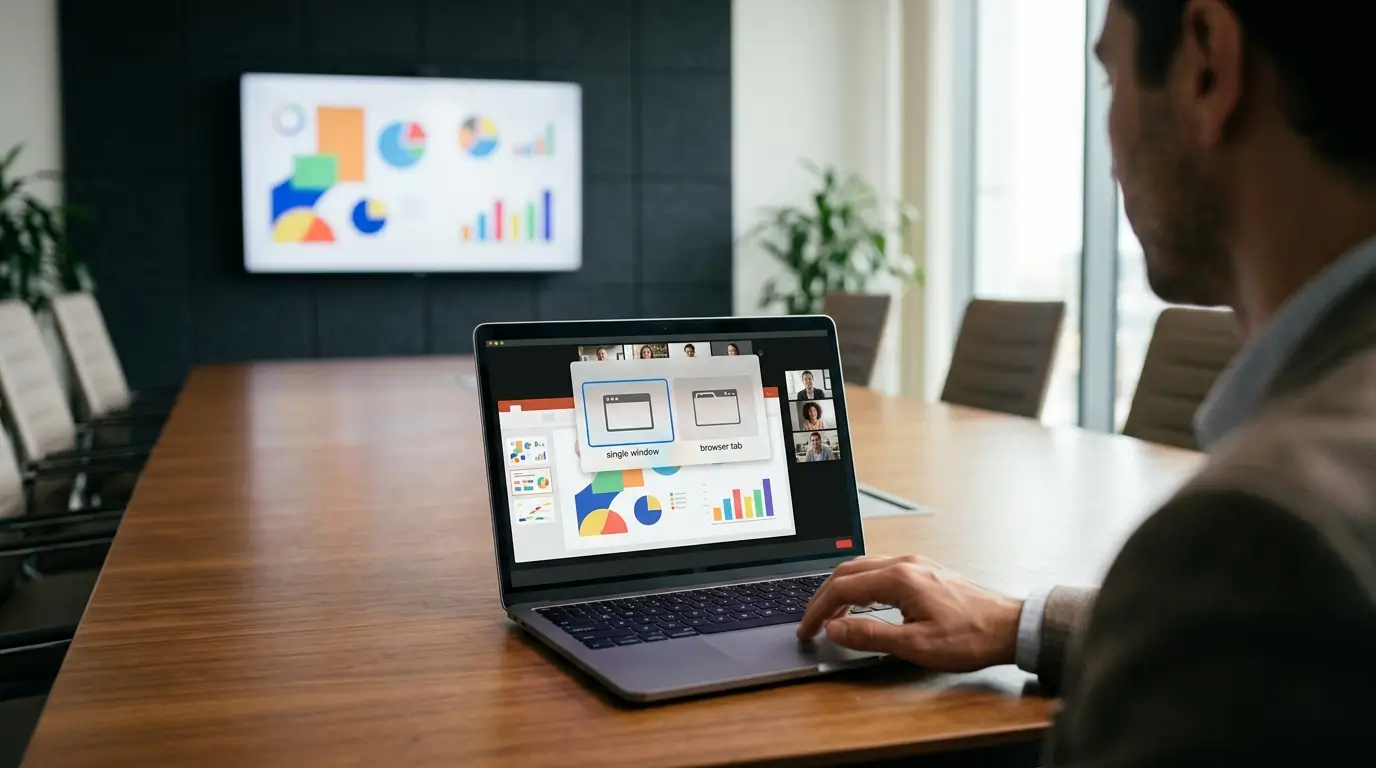
Screen sharing feels simple until you show the wrong monitor. Before the meeting starts, decide whether you will share a window, a tab, or your entire screen. A single browser tab is safest for online calls. It keeps your email, calendar, and chaotic Downloads folder out of the frame.
In person with a second display, test the mirror setting as well as the extended display. Mirroring protects you from putting speaker notes on the big screen by accident. In PowerPoint, Google Slides, and Keynote, presenter view is wonderful when it works and mildly horrifying when it lands on the wrong monitor. Click through one slide, look at the projector, and confirm the audience sees the same image you do.
Check Login and Network Before You Need Them
If your presentation lives in the cloud, sign out and back in before the call. Google Slides, PowerPoint on the web, Canva, and Prezi all love to ask for a password at the worst possible moment. Open the file in an incognito window as a final test. If it loads there, your main browser session is probably fine.
Check the network signal on your phone as a backup hotspot. Do not run a whole presentation from hotel Wi-Fi without a plan. For in-person events, ask whether guest Wi-Fi needs a code, a room number, or an email address. I once spent six minutes chasing a Wi-Fi password taped behind a lectern.
Test Audio Before You Touch Video
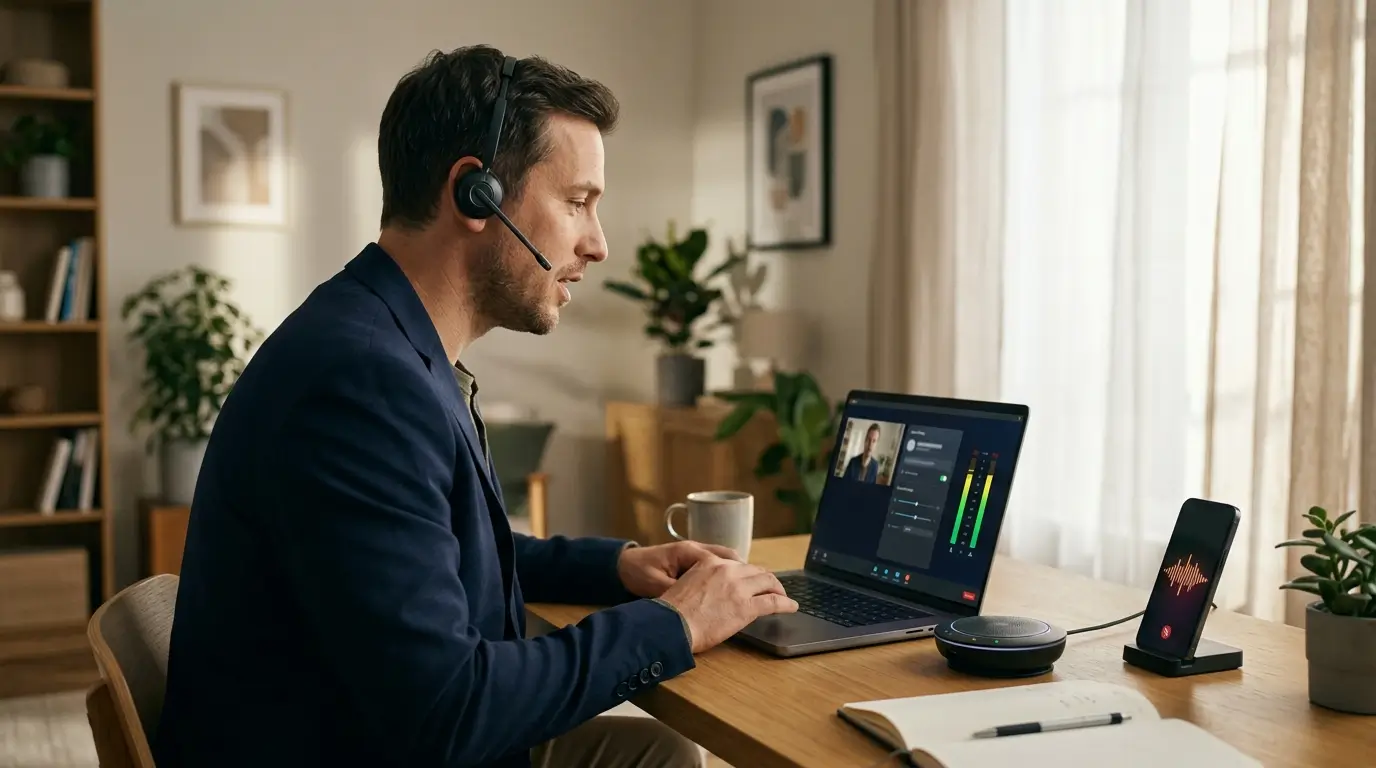
Plug in the headset or speakerphone you will actually use, then join a test meeting alone. Speak a full sentence out loud while watching the mic meter. I skipped this once and sounded like a robot trapped in a tin can. The audience was polite. My ego was not.
Open Zoom, Teams, or Meet settings and confirm the right microphone, speaker, and camera appear. Play a short video clip, listen to the level, then mute and unmute yourself twice. That boring little loop catches the two classic failures: the muted presenter who talks for five minutes and the microphone that picks up the room air conditioning instead of your voice. If your laptop has a physical mute key, check it too.
Practice Three Shortcuts That Save Your Neck
Shortcuts cut down the visible fumbling that makes a presenter look rattled. Open your slide deck and run these three moves until they feel automatic. This is not a software class. It is muscle memory for the moment when everyone is waiting.
- Start the show with F5 in PowerPoint, or click Present in Google Slides. Fumbling for the button while your face fills the screen gets awkward fast.
- Press B for a black screen or W for a white screen when you want the room looking at you instead of a chart.
- Use Alt plus Tab on Windows or Command plus Tab on Mac to jump between the deck and your notes.
Say each shortcut out loud once while you click through two slides. That sounds silly, but speech plus movement helps the action stick. Skip the list of fifty hotkeys. You will remember three practiced moves far better than thirty random ones.
Make a One Slide Safety Net
Build a single backup slide with the facts you cannot afford to lose: your main promise, three proof points, and the next step you want from the audience. If the deck freezes, you can keep talking from that one slide while someone restarts the laptop. Nobody needs to know the original file just threw a tantrum.
Keep it plain. Big text, one image at most, no clever animations. I put my safety slide at the end of the deck and save it as a separate PDF. A few months ago, a presenter lost a video transition during a pitch and recovered because her backup slide had the numbers and the call to action. The room stayed with her. The pitch survived.
Run a Tiny Rehearsal With a Timer
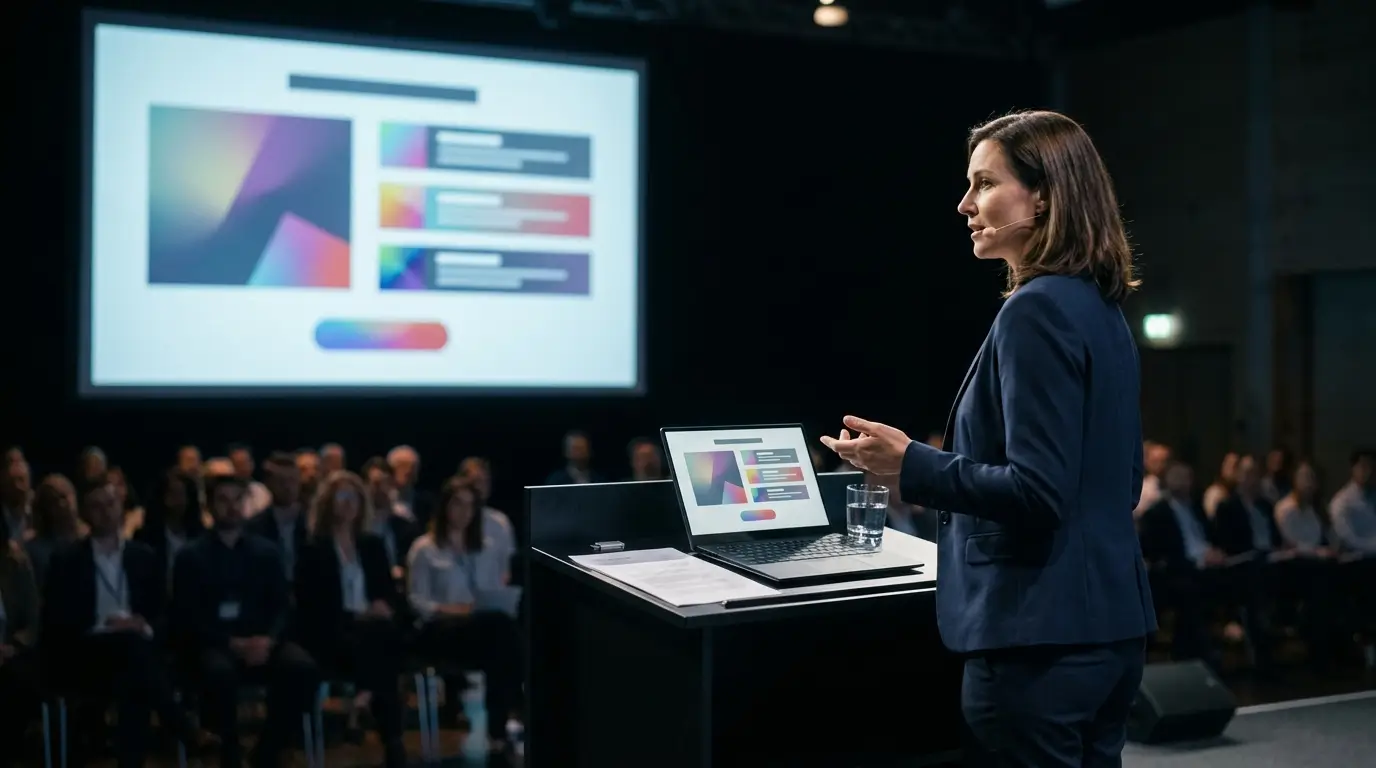
Set a five minute timer and say your opening out loud while sharing your screen. This checks two things at once: whether your mouth and brain agree, and whether the audience will see the correct window. Presenter view feels different when another person watches, even if that person is your cat.
Record thirty seconds of yourself on your phone. Look for a window glowing behind your head, a lamp shining on your forehead, or a microphone hidden under your chin. Fix one thing only. Last minute changes create new problems, and a tiny rehearsal beats a total redesign.
Set Up the Room and the Backup Plan
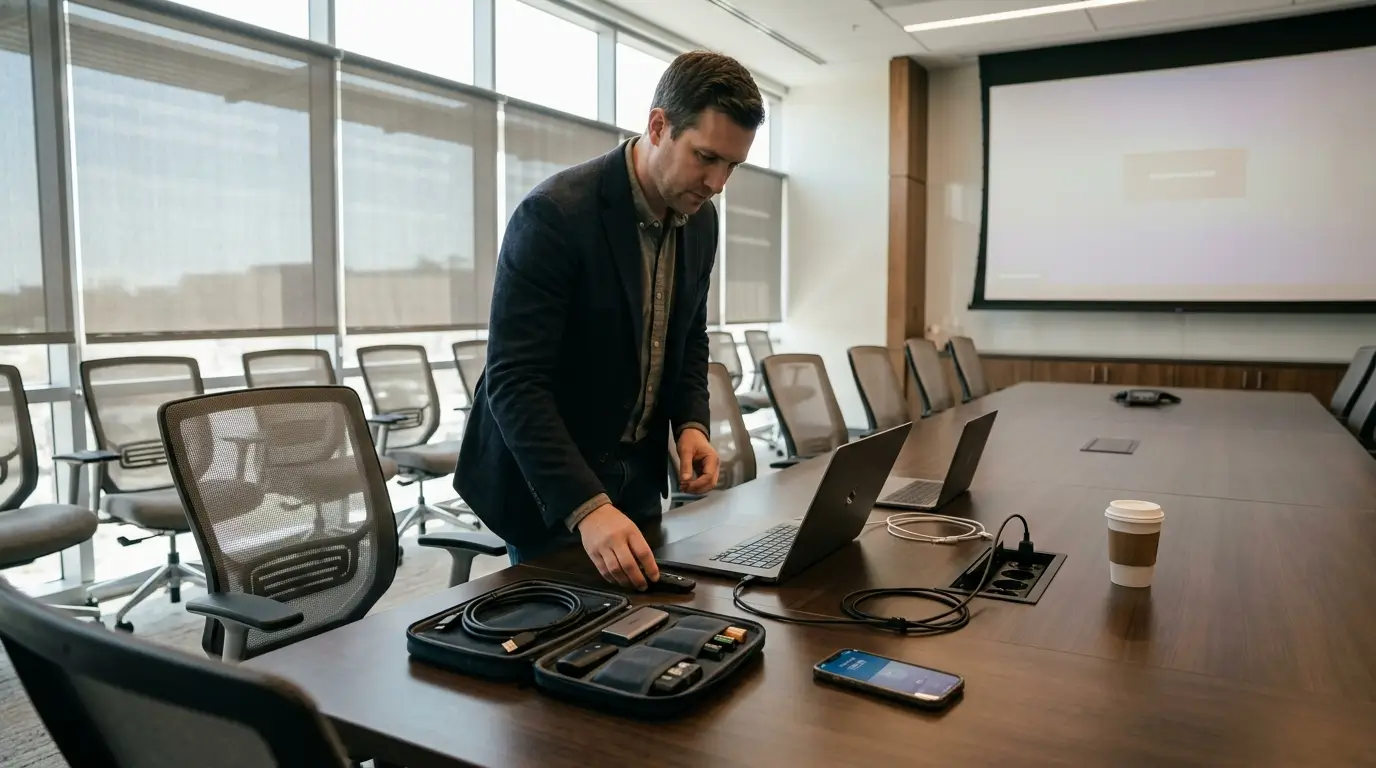
Pack the boring stuff: a USB-C adapter, an HDMI cable, a charged laptop, and a clicker with fresh batteries. Conference rooms have a talent for eating dongles. I keep a small tech pouch in my bag, and it has turned several near disasters into minor blips.
Also Read: Low Cost 3D Printing Basics for Tiny Apartment Dwellers 2026
I set up low cost 3d printing basics for tiny
Arrive early enough to test the projector, the Wi-Fi, and the power outlet. If you present online, open your slides in a browser tab and in the desktop app, then keep both ready. A quick tech skills refresher for last minute presenters should include the boring backup plan, because confidence comes from knowing you have a second route. Plug the charger into the wall before the meeting starts.
Close Cleanly and Keep the File Safe
Finish the presentation, then stop sharing your screen before you open private messages or your downloads folder. We have all seen the accidental reveal. Close the meeting app, save the file, and send yourself a quick note about what worked and what broke.
Name the next version clearly and store it in one place. If the client asks for the deck later, you will not waste twenty minutes hunting through folders. A sharp presenter treats the final minute as part of the performance, not a race to the exit. Stop sharing before you celebrate.
FAQs
What should a quick tech skills refresher for last minute presenters include?
Focus on the moves that break in real meetings: opening the file, sharing the right screen, checking audio, testing video, and knowing one backup plan. Practice three shortcuts, build a simple backup slide, and carry the adapters you need. Skip deep software training unless a specific tool is failing you.
How long does a last minute tech check really take?
A tight check can take ten minutes. Spend three minutes opening your file and meeting link, two minutes testing audio and video, two minutes sharing your screen, and three minutes running the opening out loud. If something still fails, switch to your backup slide or PDF instead of rebuilding the whole deck.
What if my slides will not load on the room computer?
Use the PDF copy you emailed yourself or saved in Google Drive. Plug in your own laptop if the venue allows it, then mirror the display instead of extending it, because a mirror keeps the audience from seeing your private notes. If none of that works, talk from your backup slide and keep the story moving.
Should I use presenter view or just share my slides?
Use presenter view when you have notes and a second screen. It shows your next slide and speaker notes while the audience sees only the deck. For a quick online call with one monitor, sharing just the slide window is safer. You avoid flashing your email, calendar, or messy desktop by mistake.
How do I calm my nerves when tech fails?
Say one short sentence to the audience, like, give me ten seconds while I switch screens. Narrate what you are doing instead of clicking silently. Then use your backup. People forgive technical trouble faster than they forgive a presenter who pretends nothing happened. Keep breathing and keep talking.
Conclusion
The best presenters are not the ones who never hit a glitch. They are the ones who know exactly what to do when the screen share freezes or the microphone goes silent. Run this short check, breathe, and give the room the calm version of you, then tell me: what is the one tech task you always check before you present?


One thought on “Quick Tech Skills Refresher for Last Minute Presenters 2026”