
The Best Keyboard Shortcuts List for People With Arthritis 2026
Finding the best keyboard shortcuts list for people with arthritis changes how you handle daily computer tasks. Constant typing and clicking create painful flare-ups that make finishing work feel impossible. Small adjustments to how you move around your screen relieve a massive amount of joint pressure. Keeping your hands resting quietly on the keys prevents unnecessary strain and gives your aching fingers serious relief.
1. The Best Keyboard Shortcuts List for People With Arthritis Starts With Ctrl + C
Copying text requires precise movements that hurt stiff joints. Highlighting a word and pressing Ctrl + C instantly copies the information without forcing your wrist into an unnatural position. This simple combination reduces painful gripping motions significantly.
You can rely on this command across almost every program you use daily. Keeping your left hand lightly positioned over the control key makes grabbing links or text painless. This specific move eliminates dozens of stressful mouse clicks during a busy morning.
2. Paste Instantly With Ctrl + V
Pasting copied text directly into a new document takes just two fingers. Pressing Ctrl + V drops everything right where your cursor sits so you can keep your hands planted firmly on the keys. Reaching for a trackpad or mouse just to right-click takes unnecessary energy.
I recommend pairing this closely with the copy command to build a smooth rhythm. Your fingers barely have to stretch to hit these two keys together. The clipboard history tool on most computers even lets you paste older items without retyping anything.
3. Undo Mistakes Painlessly Using Ctrl + Z
Typing errors happen constantly when swollen knuckles make hitting the right keys difficult. Hitting Ctrl + Z instantly reverses your last action and deletes the mistake right away. Going up to the menu bar to click the tiny undo arrow strains your wrist tendons.
This quick fix gives you peace of mind when your hands feel clumsy. You can press it multiple times to rewind several steps if you accidentally delete a whole paragraph. Relying on this command lets you work faster with much less frustration.
4. Switch Between Windows Quickly With Alt + Tab
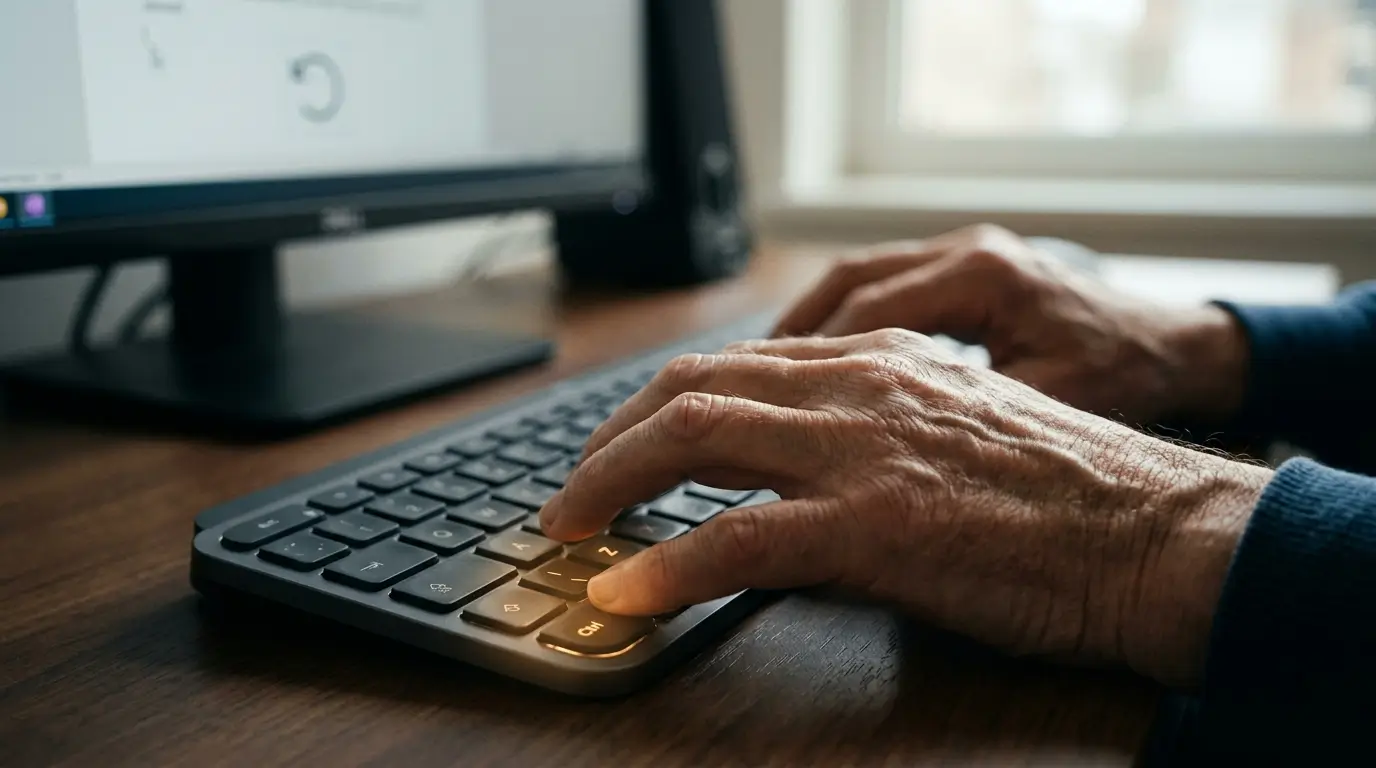
Window management requires tiny mouse movements that cause serious joint fatigue. Holding down Alt and tapping the Tab key lets you flip through open programs instantly. Your thumb and middle finger handle this easily without leaving the home row.
Also Read: Easy Voice Assistant Tips for People with Limited Mobility 2026
Moving between a web browser and a Word document suddenly feels completely effortless. You stop relying on a mouse to manage your messy desktop completely. This combo saves thousands of agonizing wrist twists over a standard work week.
5. Close Tabs Fast Using Ctrl + W
Browser tabs demand frustrating precision when you aim a mouse pointer at a tiny X. Striking Ctrl + W closes your current tab immediately without any stressful targeting. People dealing with hand stiffness often find fine motor tasks the most exhausting part of using a computer.
Clearing out your screen takes seconds when you tap this combination repeatedly. Your hands stay in a neutral typing position while you clean up your workspace. This prevents the classic claw grip that triggers severe aches by mid-afternoon.
6. Search Documents Smoothly With Ctrl + F
Long documents force your index finger into a repetitive swiping motion. If you are putting together a best keyboard shortcuts list for people with arthritis, Ctrl + F is essential for pulling up a quick search bar. The computer jumps right to the exact phrase automatically.
Finding a specific detail in a massive spreadsheet no longer requires a mouse wheel. Your joints get a break from the constant scrolling that aggravates existing inflammation. This trick works perfectly on internet pages and standard PDF files alike.
7. Select Everything at Once With Ctrl + A
Highlighting an entire page of text requires constant pressure from your click finger. Tapping Ctrl + A grabs every single word on the page in a fraction of a second. Sustained gripping motions often trigger sharp pains that linger long after you shut the computer down.
You avoid the struggle of a mouse slipping off the desk right before you finish highlighting a document. This command selects text, photos, and files all at the same time. Managing large folders becomes incredibly easy when you let your keyboard do the heavy lifting.
8. Jump to the Desktop Using Windows Key + D
Desktop clutter forces you to click a dozen different minimize buttons. Using the Windows key along with the letter D minimizes every active screen immediately. Moving your hands to shrink boxes one by one aggravates tender knuckles unnecessarily.
You can tap the same combination again to bring everything right back exactly as it was. This acts as a great reset button when your workspace feels overwhelming. Your wrists stay flat and comfortable while the software handles the tedious organization.
9. Save Your Progress Constantly With Ctrl + S
File menus interrupt your typing flow and add physical stress when you use a mouse. Reviewing a best keyboard shortcuts list for people with arthritis reminds you that tapping Ctrl + S secures your work directly from the home row. Losing a file due to sudden hand pain is incredibly frustrating.
Building the habit of hitting these keys every few minutes prevents catastrophic data loss. Your pinky finger easily handles the control key while your index taps the S. This completely removes the need to aim a cursor at a tiny floppy disk icon.
10. Open New Browser Tabs With Ctrl + T
Google Chrome hides the new tab button behind a small plus sign that requires tight hand control. Slapping Ctrl + T opens a fresh tab and drops your cursor straight into the search bar. Skipping the mouse entirely keeps your hands warm and relaxed over the keyboard.
Starting a new search happens in a blink without forcing your wrist to pivot. You can keep looking for information quickly while minimizing physical effort. Combining this with your other browser shortcuts creates a totally mouse-free web experience.

11. Bold Important Text Quickly Using Ctrl + B
Text formatting breaks your concentration and works your wrist unnecessarily. Typing Ctrl + B turns bolding on or off as you write your sentences. Writers managing flare-ups need ways to format text without touching a trackpad.
Your hands never leave the standard typing position when emphasizing a crucial point. Adding keyboard shortcuts like this to your routine reduces total movement drastically. You can also use Ctrl + I for italics using the exact same comfortable method.
12. Zoom in on Tiny Text With Ctrl and Plus
Tiny text causes you to lean forward and put extra weight on your forearms. Any solid best keyboard shortcuts list for people with arthritis features Ctrl and the plus key to enlarge your browser instantly. Good posture prevents referred pain from traveling down your neck into your hands.
Reading small fonts no longer requires you to adjust your seating position constantly. You hit the minus key with the same setup to zoom back out when finished. Making the screen readable helps you maintain a relaxed physical grip on your workstation.
13. Lock Your Screen Safely Using Windows Key + L
Privacy matters, but securing your computer usually involves hunting for a start menu lock button. A truly helpful best keyboard shortcuts list for people with arthritis includes the Windows key and L to secure your desktop fast. When your hands throb you just want to stand up immediately.
This quick exit strategy protects your privacy without demanding any fine motor skills. Resting your joints matters immensely when trying to recover from an intense typing session. Knowing this trick lets you step away to stretch your fingers without leaving sensitive files exposed.

14. Reopen Closed Tabs With Ctrl + Shift + T
Accidentally closing a web page usually means digging through history menus with your mouse. Using Ctrl, Shift, and T together brings back the last tab you shut down perfectly intact. Complex mouse movements create serious friction when your thumb joints ache.
Rescuing a lost recipe or important email takes less than a second this way. Your fingers share the workload across three keys instead of putting all the pressure on one click finger. This simple recovery method saves your sanity and your joints simultaneously.
FAQs
What is the best way to memorize these keyboard combinations?
Printing out a quick reference sheet and taping it to your monitor works wonders. Try practicing just two new combinations each day until they become muscle memory. Relying on sticky notes helps you avoid reaching for the mouse when joint stiffness flares up unexpectedly.
Can a different keyboard help with joint pain?
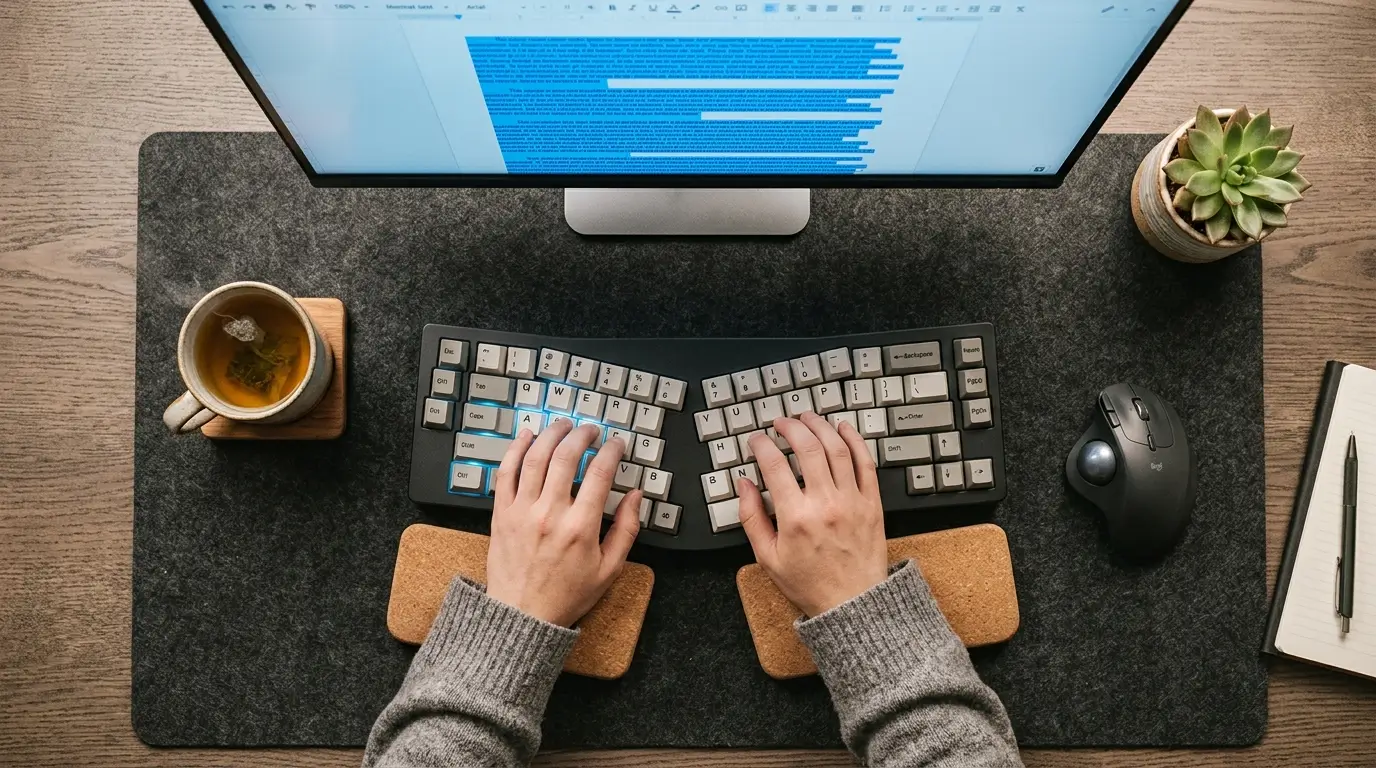
Switching to an ergonomic split keyboard reduces the awkward angles your wrists deal with on standard boards. Using mechanical keys with soft switches requires much less force to register a keystroke. Matching better hardware with your favorite shortcuts provides maximum relief for aching knuckles.
Do these commands work on Apple computers?
Most of these commands translate perfectly to a Mac if you swap the Control key for the Command key. Finding a best keyboard shortcuts list for people with arthritis using Apple devices just requires that one simple mental adjustment. Your fingers will appreciate the identical ergonomic benefits.
How do I stop accidentally hitting the wrong keys?
Swollen fingers sometimes hit two keys at once and cause frustrating errors. Adjusting the accessibility settings on your computer allows you to turn on filter keys which ignores brief or repeated keystrokes. This feature keeps your document clean even when your hands feel completely uncoordinated.
Are there shortcuts to open my favorite programs?
You can pin your most used applications to your taskbar at the bottom of the screen. Pressing the Windows key along with a number directly opens the corresponding program from that list. This completely bypasses the need to double click tiny desktop icons every morning.
Conclusion
Changing the way you interact with your computer prevents unnecessary wear and tear on your vulnerable joints. Relying on these key combinations keeps your hands resting comfortably instead of gripping a plastic mouse all day. What is the first shortcut you plan to start using tomorrow morning?





One thought on “The Best Keyboard Shortcuts List for People With Arthritis 2026”