Foolproof Home Network Setup Guide For Indecisive People 2026
Finding the right Wi-Fi gear can feel impossible, which is why I created this foolproof home network setup guide for indecisive people. You spend hours reading reviews, comparing specs, and panicking over whether you need a mesh system or a traditional router. Stop overthinking it right now. The constant buffering and dead zones are driving you crazy, so we are fixing this problem today.
Determine Your Real Internet Speed Needs
Before buying a single piece of hardware, you must know what speeds you actually pay for. Many folks buy a high-end router hoping it fixes their lag, only to realize their basic internet plan caps out at 50 Mbps. Log into your internet provider account and check your exact plan details.
Paying for anything under 300 Mbps means almost any modern router will handle your traffic just fine. If you pay for Gigabit speeds, you absolutely need equipment rated for Wi-Fi 6 or higher to actually use that bandwidth. I spent a week troubleshooting a slow connection at my old apartment before realizing I was only paying for the cheapest basic tier.
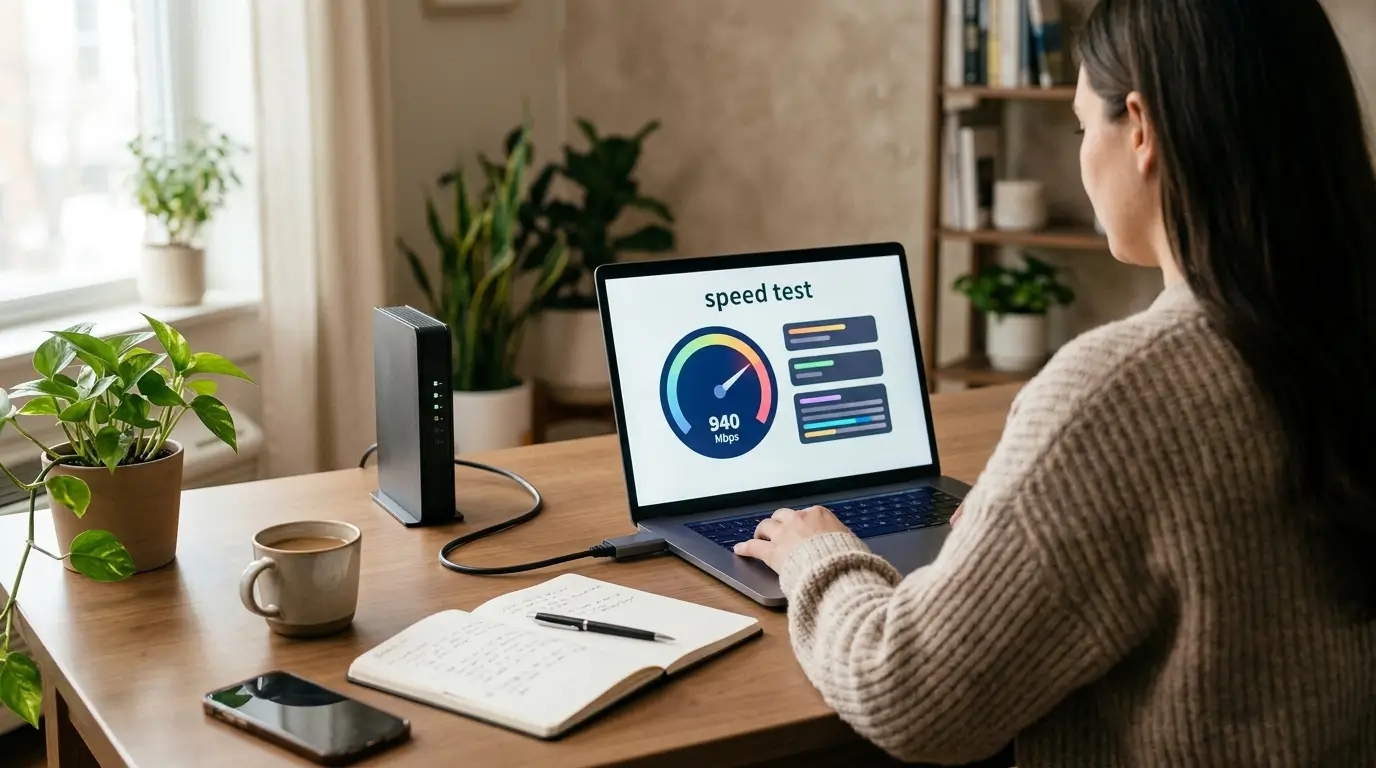
Save yourself the headache and confirm your baseline numbers first. Use a hardwired laptop plugged directly into your current modem to run a baseline speed test. This gives you a clear target to aim for once the new network is running.
A Foolproof Home Network Setup Guide For Indecisive People Starts Here
Choosing between a traditional single router and a multi-node mesh system paralyzes a lot of buyers. The rule of thumb is remarkably simple. If your home is under 1,500 square feet, buy a single, powerful standalone router. Placed centrally, it will cover everything with raw broadcasting strength. If your home is larger, has brick interior walls, or spans multiple floors, you need a mesh system.
Also Read: Quick Online Safety Tips for Anxious Internet Beginners 2026
Brands like Eero or TP-Link Deco make this decision effortless. They use multiple units spread across the house to bounce the signal around obstacles. Do not overcomplicate this choice. Buying a three-pack mesh system for a tiny apartment will actually cause signal interference and make your connection worse. Stick to the square footage rule and pull the trigger on whichever highly rated option fits your budget.
Buy Your Own Modem Instead Of Renting
Internet service providers love charging you a monthly fee for their combination modem and router units. These devices are almost always terrible. They overheat, drop connections randomly, and lock you out of advanced settings. You should purchase your own dedicated modem immediately. Look for a DOCSIS 3.1 standard modem from a reliable brand like Arris or Netgear. Calling your provider to activate your own modem takes about ten minutes on the phone.
Once that is done, you pack up their rented trash, drive to their local store, and return it. You will save between ten and fifteen dollars a month, which pays for the new hardware in less than a year. Having a separate modem also means you only need to upgrade your router when Wi-Fi technology improves, rather than replacing the entire stack.
Find The Best Central Location For Hardware
Where you put your router matters more than how much it costs. Hiding your expensive new networking gear behind a television or stuffing it inside a media console will destroy your signal strength. Wi-Fi signals degrade every time they pass through solid objects like wood, glass, or human bodies. Find the most central room in your house and place the primary router up high on a shelf.
Keep it away from thick walls, microwaves, and large metal appliances like refrigerators. When I finally moved my router from a cramped corner desk to the top of a bookshelf in my living room, my bedroom dead zone completely vanished. Treat the router like a lamp. If you want the light to reach every corner of the room, you do not shove it inside a cabinet.
Separate Your Smart Home Devices
Smart plugs, robotic vacuums, and Wi-Fi security cameras crowd your network very quickly. Following a foolproof home network setup guide for indecisive people means cutting through the noise, and separating these smart devices is a prime example of doing exactly that. These gadgets mostly use older 2.4 GHz bands and can slow down your entire system if everything shares the exact same connection point. You should activate a secondary network specifically for your smart home gear.
Many modern routers offer a dedicated IoT network setting right in the control app. If yours lacks that specific feature, simply turn on the guest network and connect all your smart bulbs and switches there. This keeps your primary 5 GHz band clear for the devices that actually need speed, like your gaming console, work laptop, and television.

Change The Default Passwords Immediately
Never leave the factory passwords active on your new equipment. The sticker on the bottom of the router provides administrative login details that are often easily guessable or available in public databases. Connect to your new Wi-Fi network for the first time, open the companion app or web interface, and head straight to the security settings.
Create a custom administrator password for the router controls and a separate, strong password for the actual Wi-Fi network. Write these down in a physical notebook or store them securely in a password manager. Leaving the default admin credentials active means anyone sitting outside your house could potentially access your network settings and lock you out of your own internet connection.
Enable Guest Networks For Visitors
Handing out your main Wi-Fi password to every friend or family member who visits is a terrible habit. You lose track of who has access, and their compromised phones or tablets could potentially infect your local network. You can solve this in thirty seconds by toggling on the guest network feature.
Give it a simple name and an easy to remember password. When friends come over for dinner and ask for the Wi-Fi, point them to the guest connection. This gives them full access to the internet while blocking them from seeing your shared folders, wireless printers, or personal devices. I keep my guest network active permanently and change the password every six months just to keep things clean.
Run Ethernet Cables To High Demand Devices
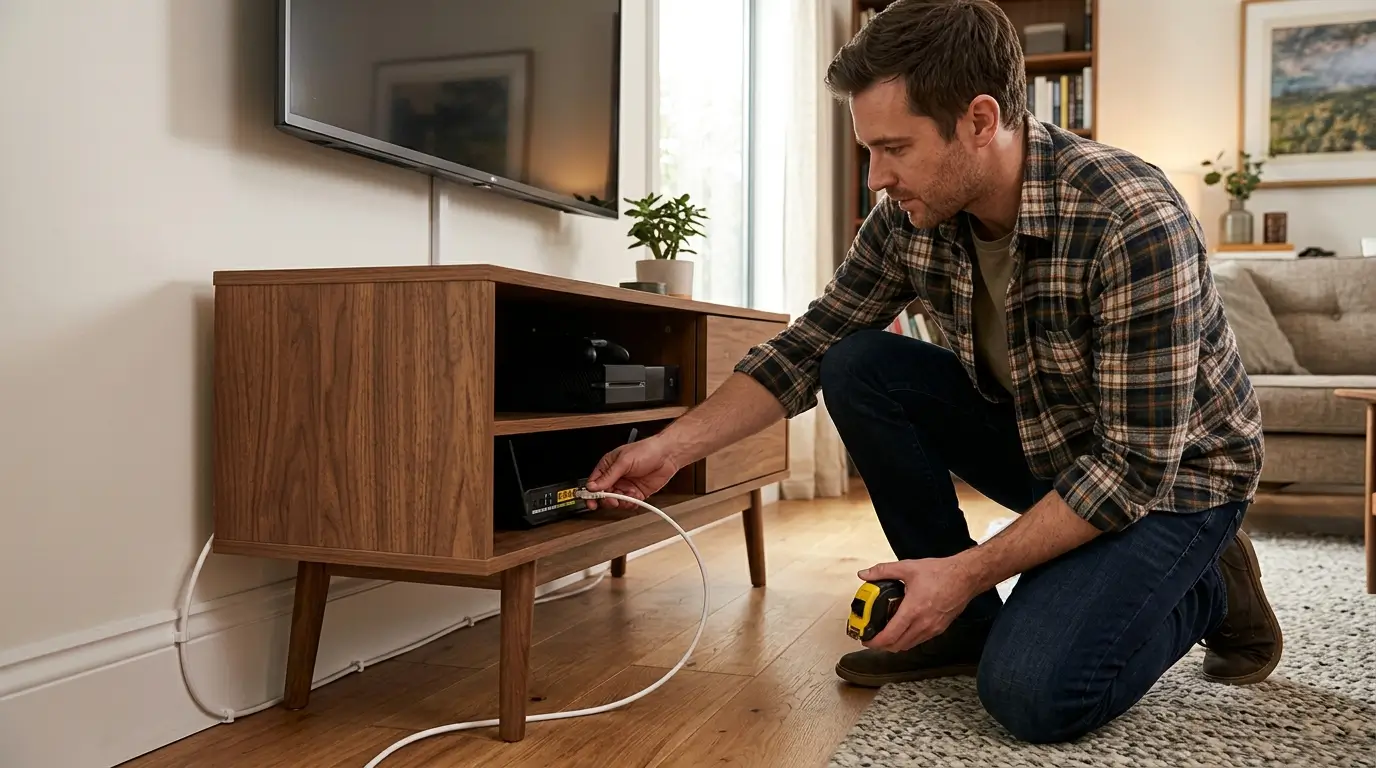
Wireless technology is incredible, but a physical wire will always beat a radio wave. Any device that streams 4K video, downloads massive files, or requires low latency for gaming should be hardwired. If you want this foolproof home network setup guide for indecisive people to actually eliminate buffering, do not skip physical wires. Grab a tape measure, figure out the distance from your router to your television or gaming console, and buy an appropriately sized Cat 6 Ethernet cable.
Connecting these heavy hitters directly to the router takes an enormous load off your wireless network. Your phones and tablets will run noticeably faster once the television stops hogging all the wireless bandwidth. Hiding the cables along baseboards or under area rugs keeps things looking neat while delivering flawless, buffer-free performance.
Update Your Firmware On Day One
Hardware sits on warehouse shelves for months before arriving at your doorstep. By the time you unbox that shiny new router, the manufacturer has likely released several software patches to fix bugs and close security vulnerabilities. During your initial setup process, force the system to check for firmware updates.
Most companion apps prompt you to do this automatically, but you should verify it manually in the settings menu just to be safe. Running outdated firmware is the quickest way to experience random disconnects and speed drops. Once the initial update finishes, turn on the automatic update toggle so the router can handle future patches while you sleep.
Check For Wireless Channel Interference
If you live in a dense apartment building or a closely packed suburban neighborhood, your router is screaming over dozens of competing signals. Routers operate on specific channels, and if you share the same channel as your neighbors, speeds will suffer drastically.
Most modern routers feature an automatic channel optimization tool buried in their app settings. Run this scan. The software listens to the surrounding airspace and automatically switches your network to the least crowded frequency. I run this optimization scan once a month, especially on Sunday evenings when everyone in my building is streaming movies simultaneously. It takes thirty seconds and often provides a noticeable bump in loading speeds.
Test Your Coverage In Every Room
The final step in this foolproof home network setup guide for indecisive people involves verifying your hard work. Grab your smartphone, disconnect from cellular data, and walk into every room of your house while running a free speed testing application. Stand in the corners, go into the bathrooms, and step out onto the back patio. Note any areas where the connection drops significantly.
If you notice a stubborn dead zone, you might need to adjust the physical placement of your router slightly. Shifting the unit just two feet to the left can sometimes bypass a structural beam inside your walls and flood the dead room with perfect signal.

Frequently Asked Questions
What is the best router for a foolproof home network setup for indecisive folks?
You should buy a highly rated mesh system from Eero or TP-Link if you have a large home. For smaller spaces, an Asus or Netgear standalone unit provides incredible value. Pick one with Wi-Fi 6 capabilities and stop second-guessing your choice.
Do I need to buy special ethernet cables?
Basic Cat 6 cables handle Gigabit speeds perfectly and cost very little online. Avoid overpaying for gold-plated connectors or heavily marketed gaming cables. Just measure your required distance, buy a standard black or white cord, and plug it right in.
Why does my Wi-Fi drop randomly during the day?
Random drops often happen because of channel interference from neighboring networks or outdated firmware. Force your router to check for software updates first. Then run the channel optimization tool in your router application to find a less congested broadcasting frequency.
Can I use my old router as a Wi-Fi extender?
You can technically wire an old router to act as an access point, but it usually creates more problems than it solves. Devices struggle to switch smoothly between the old and new network names. Buying a proper mesh system is much more reliable.
Conclusion
Building a reliable internet connection does not require an engineering degree or endless hours of research. You just need to place your hardware correctly, secure your settings, and stop overthinking the equipment choices. Enjoy your newly optimized, lightning-fast streaming speeds.